Introduction
Bookkeeping is the backbone of every small business, yet it is often one of the most time-consuming and error-prone tasks. Recording transactions manually, reconciling bank statements, and categorizing expenses can quickly become overwhelming—especially as a business grows. For many small business owners, these repetitive accounting tasks reduce productivity and take focus away from core operations such as sales, customer service, and business expansion.
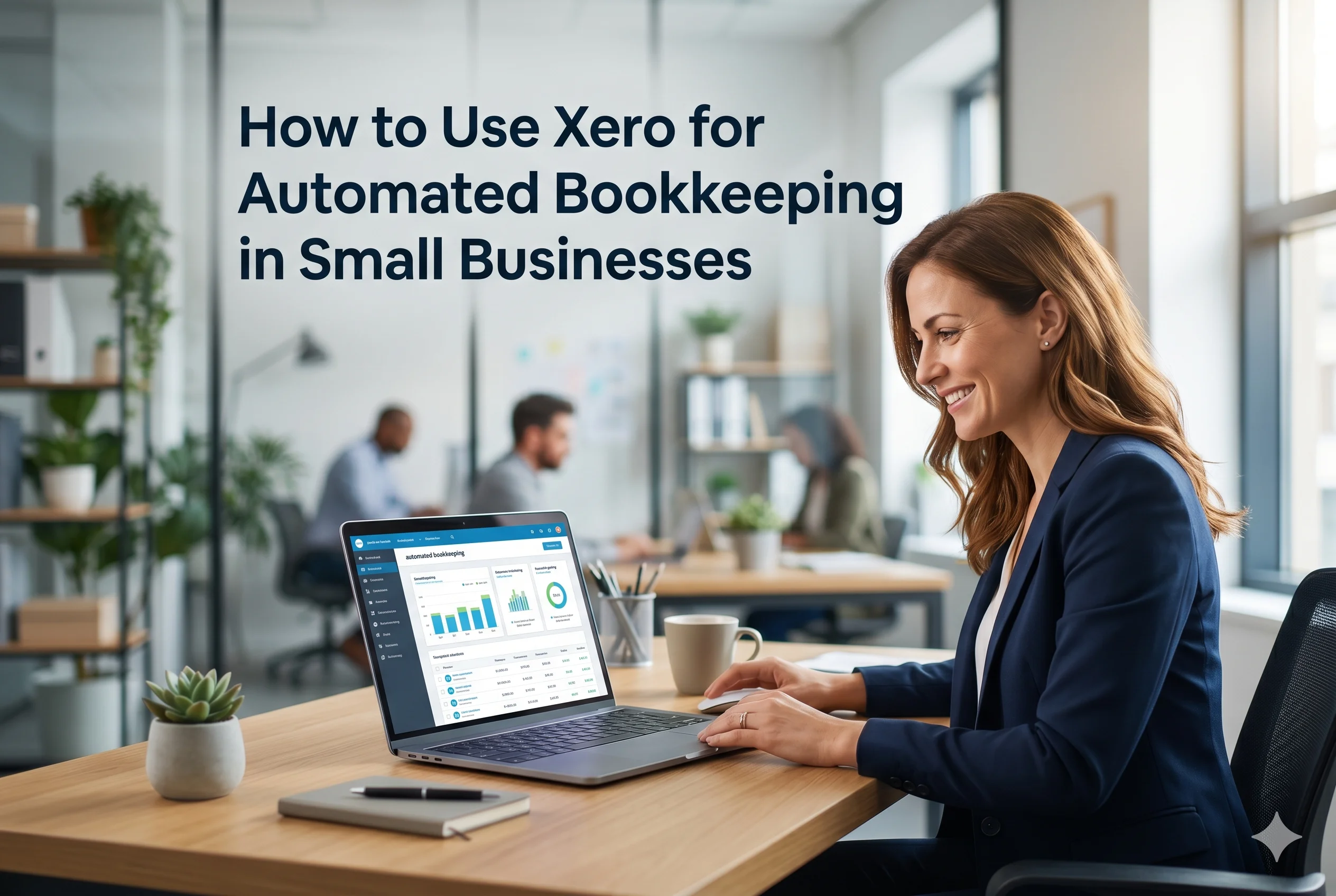
This is where automated bookkeeping becomes a game changer. With modern cloud accounting solutions like Xero, businesses can streamline financial processes, reduce manual workload, and maintain accurate real-time financial records with minimal effort.
This article provides a complete, practical guide on how to use Xero for automated bookkeeping in small businesses, including its features, setup process, benefits, and real-world applications.
What Is Automated Bookkeeping?
Automated bookkeeping refers to the use of accounting software to automatically record, categorize, and reconcile financial transactions without requiring manual data entry.
Instead of entering every invoice or expense manually, systems like Xero use automation tools such as:
- Bank feeds
- AI-based transaction matching
- Rule-based categorization
- Digital receipt capture
Key Objective:
To reduce manual effort while improving accuracy and financial visibility.
Why Automated Bookkeeping Matters for Small Businesses
Small businesses often operate with limited resources and tight budgets. In such environments, efficiency and accuracy are critical.
Common challenges without automation:
- Time-consuming data entry
- Frequent human errors
- Delayed financial reporting
- Difficulty tracking expenses
- Poor cash flow visibility
Automation solves these problems by ensuring that financial data is updated in real time and accurately categorized.
How Xero Enables Automated Bookkeeping
Xero is designed specifically to simplify bookkeeping through intelligent automation tools that reduce manual intervention.
Below is a step-by-step breakdown of how Xero supports automated bookkeeping.
Automated Bank Feeds
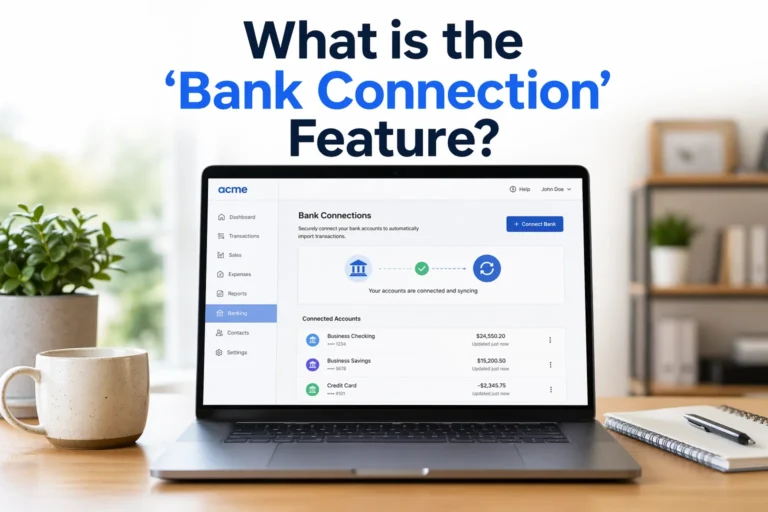
One of Xero’s most powerful features is direct bank integration.
How it works:
- Business bank accounts are connected to Xero
- Transactions are automatically imported daily
- Data is updated in real time
Benefits:
- Eliminates manual bank entry
- Ensures up-to-date financial records
- Reduces reconciliation time
Example:
A retail business sees all daily sales transactions automatically reflected in Xero without manual input.
Smart Transaction Categorization
Xero uses rules and past data to automatically categorize transactions.
Features:
- Create custom rules (e.g., rent, utilities, suppliers)
- Auto-assign categories based on transaction history
- Suggest matching accounts for new transactions
Benefits:
- Consistent financial classification
- Reduced bookkeeping errors
- Faster month-end closing
Automated Invoice Processing
Invoicing is a core part of bookkeeping, and Xero automates much of this process.
Capabilities:
- Generate and send invoices automatically
- Set recurring invoices for regular clients
- Track invoice status in real time
- Send automated payment reminders
Business Impact:
- Faster payments
- Improved cash flow
- Less administrative workload
Digital Receipt Capture
Manual receipt handling is one of the biggest bookkeeping inefficiencies.
Xero solution:
- Upload receipts via mobile app
- Email receipts directly to Xero
- Automatically match receipts with expenses
Result:
Every expense is digitally recorded and linked to the correct transaction.
Automated Bank Reconciliation
Bank reconciliation ensures that accounting records match bank statements.
How Xero automates it:
- Matches imported bank transactions with invoices and expenses
- Suggests reconciliation options
- Flags unmatched items for review
Benefit:
What traditionally takes hours can be completed in minutes.
Payroll and Expense Automation
For businesses with employees, payroll is a major bookkeeping task.
Xero automates:
- Salary calculations
- Tax deductions
- Payroll reporting
- Expense reimbursements
Step-by-Step: How to Set Up Automated Bookkeeping in Xero
Connect Your Bank Account
- Log in to Xero
- Link your business bank account securely
- Enable automatic transaction feeds
Set Up Chart of Accounts
- Define income and expense categories
- Customize based on your business type
Create Automation Rules
- Set rules for recurring transactions
- Example: Rent → Office Expense category automatically
Enable Invoice Automation
- Set up recurring invoices
- Add payment reminders
- Integrate payment gateways
Use Mobile Receipt Capture
- Download Xero mobile app
- Start scanning receipts instantly
- Attach them to transactions
Reconcile Regularly
- Review automated matches
- Approve or adjust suggestions
- Keep books clean and updated
Benefits of Automated Bookkeeping in Xero
Time Efficiency
Automation reduces hours of manual bookkeeping work every week.
Higher Accuracy
Reduces human errors in data entry and categorization.
Real-Time Financial Insights
Business owners can see updated financial data anytime.
Improved Cash Flow Management
Better tracking of income and expenses helps avoid cash shortages.
Cost Reduction
Less dependency on manual bookkeeping reduces operational costs.
Scalability
Automation allows businesses to grow without increasing accounting workload.
Xero vs Manual Bookkeeping
| Feature | Manual Bookkeeping | Xero Automated Bookkeeping |
|---|---|---|
| Data Entry | Fully manual | Automated via bank feeds |
| Accuracy | Error-prone | High accuracy |
| Time Required | High | Minimal |
| Reporting | Delayed | Real-time |
| Expense Tracking | Manual receipts | Digital capture & matching |
Real-World Use Cases
E-Commerce Businesses
- Automatically track online sales
- Match payments with orders
- Manage supplier expenses efficiently
Service-Based Businesses
- Automate client invoicing
- Track project expenses
- Monitor profitability per service
Retail Businesses
- Handle daily transaction volumes
- Reconcile sales with bank deposits
- Track inventory-related expenses
Freelancers and Consultants
- Simplify invoicing
- Automate expense tracking
- Maintain tax-ready records
Common Mistakes to Avoid
Even with automation, businesses should avoid:
- Ignoring reconciliation checks
- Not setting up proper transaction rules
- Mixing personal and business expenses
- Failing to review automated entries
Automation works best when combined with regular oversight.
Best Practices for Using Xero Effectively
- Set up automation rules early
- Reconcile accounts weekly
- Keep categories organized and consistent
- Use mobile features for real-time updates
- Integrate all financial tools into Xero
Conclusion
Automated bookkeeping is no longer a luxury—it is a necessity for small businesses aiming to improve efficiency, accuracy, and financial control. By leveraging the powerful automation features of Xero, businesses can eliminate manual accounting burdens and focus on growth-oriented activities.
From automated bank feeds and smart categorization to digital receipt capture and real-time reporting, Xero transforms traditional bookkeeping into a streamlined, intelligent system. This not only saves time and reduces costs but also provides business owners with the clarity needed to make confident financial decisions.
For small businesses looking to scale efficiently, adopting Xero for automated bookkeeping is a strategic step toward long-term financial success and operational excellence.