Introduction
Handling sales tax (or VAT/GST depending on your country) is one of the most critical and complex parts of business accounting. Incorrect tax calculations can lead to compliance issues, penalties, and financial inaccuracies.
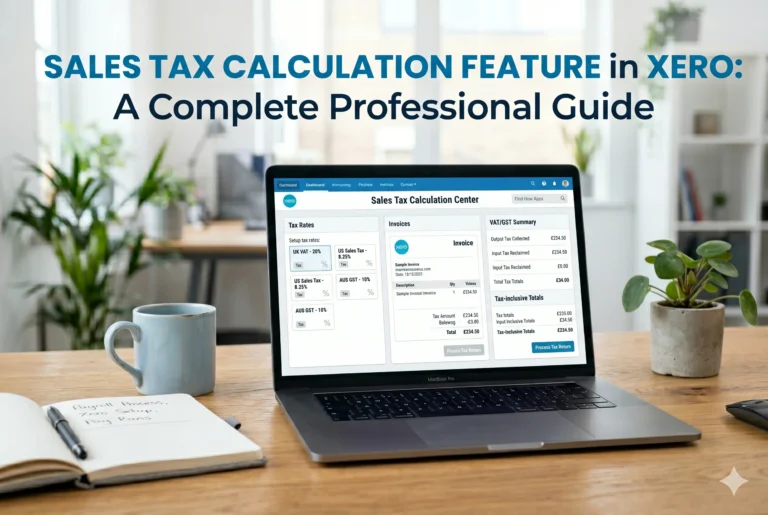
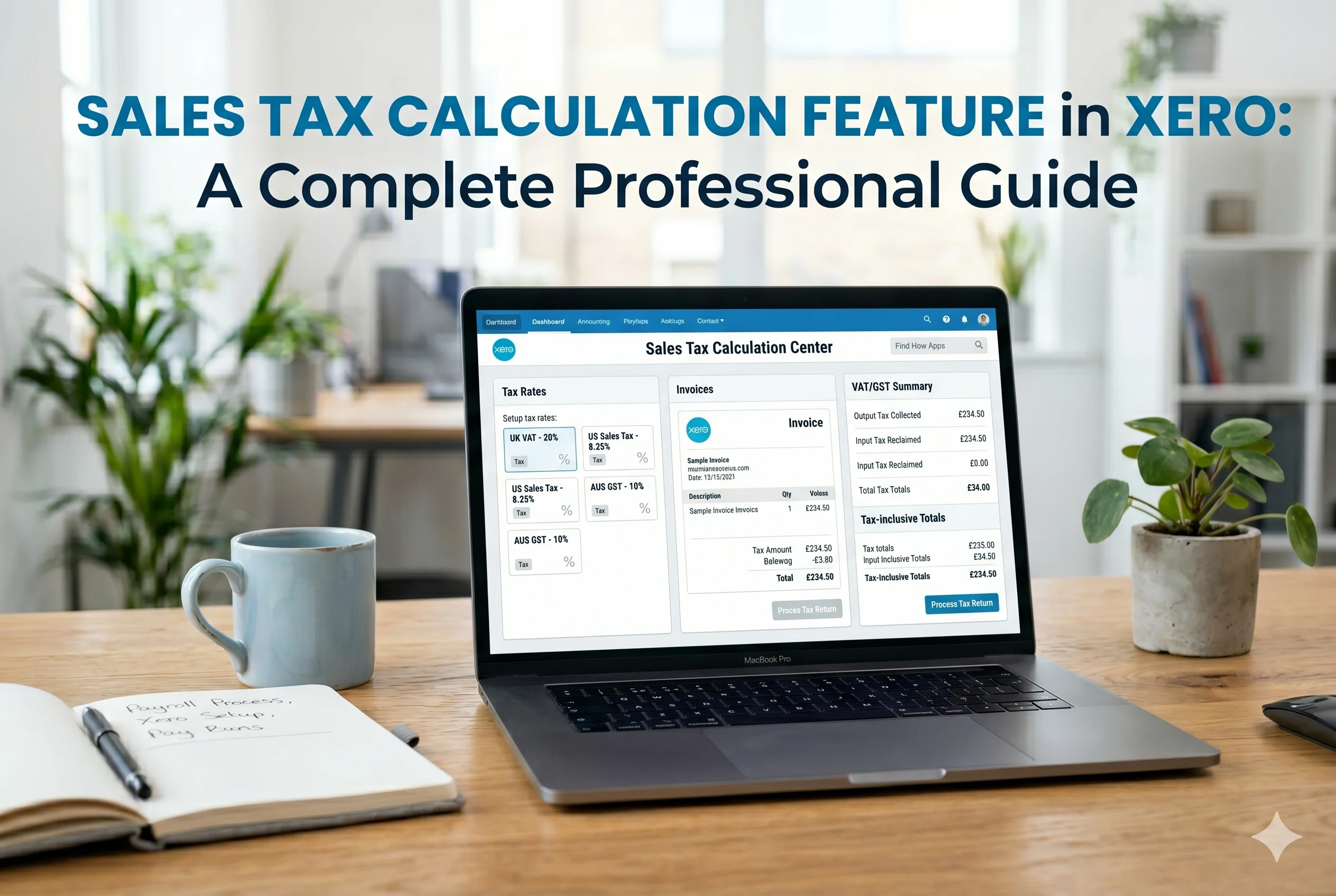
The sales tax calculation feature in Xero is designed to simplify this entire process. It automates tax calculations, applies the correct rates, tracks liabilities, and generates reports for filing—all within one system.
This detailed guide explains what the sales tax feature is, how it works, its key features, and how to use it effectively in your business.
What Is Sales Tax in Accounting?
Sales tax is a government-imposed tax on the sale of goods and services. Businesses collect this tax from customers and later pay it to the government.
Basic Formula
- Sales Tax Amount = Price × Tax Rate
- Total Price = Price + Sales Tax (Xero)
Example:
If a product costs $100 and tax is 10% →
Tax = $10 → Total = $110
What Is the Sales Tax Feature in Xero?
The sales tax feature in Xero allows businesses to:
- Automatically calculate tax on transactions
- Apply different tax rates based on location and product type
- Track tax liabilities
- Generate reports for tax filing
It eliminates manual calculations and ensures compliance with tax regulations.
How Xero Calculates Sales Tax
Xero uses a smart automated system to calculate tax accurately.
1. Tax Rate Assignment
Each product or service is assigned a tax rate (e.g., 5%, 10%, or 0%).
2. Transaction-Based Calculation
When you create an invoice or bill:
- Xero applies the selected tax rate
- Calculates tax automatically for each line item (Xero)
3. Location-Based Rules (Advanced)
In advanced setups (like auto sales tax):
- Tax is calculated based on:
- Seller location
- Buyer location
- Product taxability
- Customer exemptions (Xero)
4. Automatic Updates
Tax rates and rules can be updated automatically (via integrations like Avalara), ensuring compliance with changing laws (Xero)
Key Features of Xero Sales Tax Calculation
1. Automated Tax Calculation
Xero calculates tax automatically on:
- Invoices
- Bills
- Purchase orders
- Quotes
This removes the need for manual calculations.
2. Custom Tax Rates
You can:
- Create multiple tax rates
- Edit existing rates
- Apply different rates for different products
Xero allows full flexibility in managing tax structures (Xero)
3. Line-by-Line Tax Calculation
Each item in an invoice can have a different tax rate.
Example:
- Product A → 5% tax
- Product B → 10% tax
Xero calculates both separately and totals them automatically.
4. Tax Inclusive and Exclusive Pricing
Xero supports:
- Tax Exclusive Pricing → Tax added on top
- Tax Inclusive Pricing → Tax included in price
This is useful for different countries and business models.
5. Sales Tax Reporting
Xero generates detailed tax reports including:
- Total tax collected
- Tax by region
- Taxable vs non-taxable sales
These reports help in filing returns easily (Xero)
6. Automated Sales Tax (Advanced Feature)
Xero offers auto sales tax, powered by tax automation tools.
Capabilities:
- Real-time tax calculation
- Jurisdiction-based tax rates
- Automatic compliance updates
- Multi-region tax handling (Xero)
7. Tax Exemptions Handling
You can mark:
- Certain products as tax-free
- Certain customers as tax-exempt
Xero automatically adjusts calculations accordingly.
Step-by-Step: How to Use Sales Tax in Xero
Step 1: Set Up Tax Rates
- Go to “Accounting” → “Tax Rates”
- Create or edit tax rates
- Add percentages and components
Step 2: Assign Tax Rates
Assign tax rates to:
- Products/services
- Customers
- Accounts
This ensures automatic application during transactions.
Step 3: Create an Invoice
- Go to “Business” → “Invoices”
- Add items and select tax rates
- Xero calculates tax automatically
Step 4: Review Tax Calculation
Check:
- Tax per item
- Total tax amount
- Final invoice value
Step 5: Record Transactions
When payments are received:
- Xero records tax automatically
- Updates tax liability account
Step 6: Generate Tax Reports
- Go to “Accounting” → “Reports”
- Select “Sales Tax Report”
You’ll see:
- Total tax collected
- Breakdown by rate
- Filing summaries
Step 7: File Tax Returns
Use the generated reports to:
- Prepare tax returns
- Submit to authorities
(Some regions allow automated filing via integrations)
Benefits of Xero Sales Tax Feature
1. Accuracy
Eliminates human error in tax calculations.
2. Time-Saving
Automation reduces manual work.
3. Compliance
Keeps your business aligned with tax regulations.
4. Real-Time Tracking
Always know how much tax you owe.
5. Scalability
Handles multiple tax rates and regions easily.
Real-World Example
Imagine you sell products online:
- Product price = $200
- Tax rate = 8%
Xero automatically calculates:
- Tax = $16
- Total = $216
If you sell in different regions:
- Xero applies different tax rates automatically
- Generates separate reports for each region
Sales Tax vs VAT/GST in Xero
Depending on your country:
- USA → Sales Tax
- UK/EU → VAT
- Pakistan → GST
Xero supports all these systems using the same framework:
- Input tax (on purchases)
- Output tax (on sales)
- Net tax payable
Best Practices for Using Sales Tax in Xero
1. Set Correct Tax Rates
Ensure all rates match your local regulations.
2. Review Transactions Regularly
Check invoices and tax calculations.
3. Use Automation
Enable auto sales tax for better accuracy.
4. Keep Records Organized
Maintain reports for audits and compliance.
5. Understand Tax Rules
Know which products/services are taxable.
Limitations of Xero Sales Tax Feature
- Advanced automation may not be available in all countries
- Requires correct initial setup
- Complex tax systems may need integrations
Conclusion
The sales tax calculation feature in Xero is a powerful tool that transforms how businesses handle taxes. By automating calculations, applying accurate rates, and generating detailed reports, it reduces errors and ensures compliance.
Whether you are a small business owner or managing a growing company, Xero makes tax management simple, efficient, and reliable.
If you want to eliminate manual tax calculations and maintain accurate financial records, using Xero’s sales tax feature is not just helpful—it’s essential for modern business accounting.